

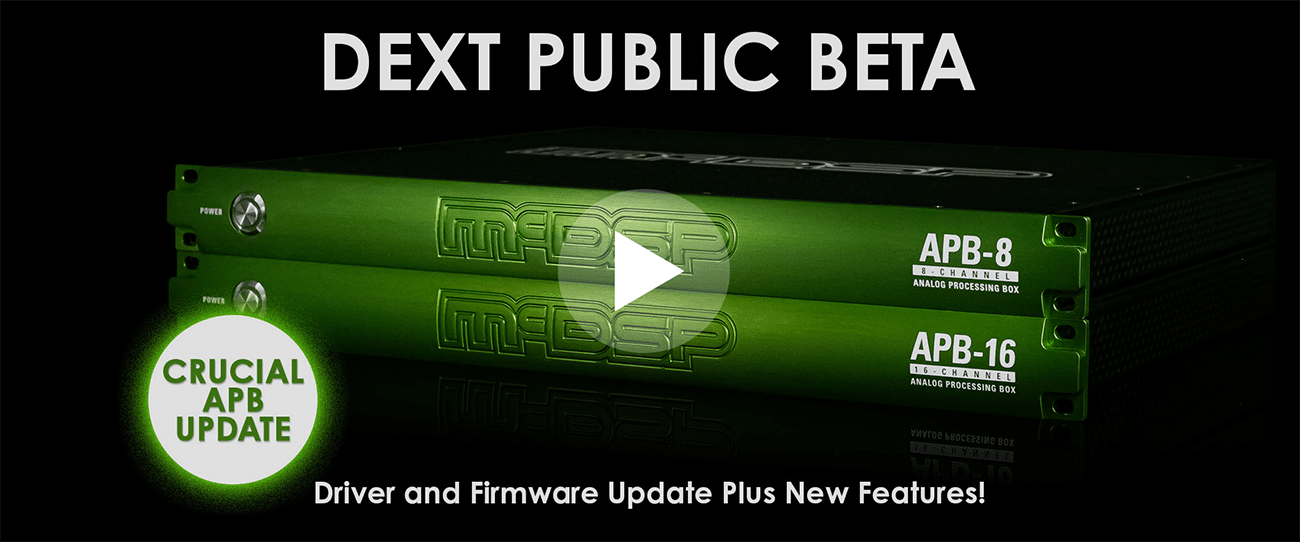
DEXT is the latest Apple driver extension that allows your Mac to communicate with your APB. Please read the full instructions before beginning, and if you have questions, contact support or read our DEXT FAQ. 
Step 1
Turn your APB off. Your APB must be off when running the DEXT APB plug-in installer for the first time.
Step 2
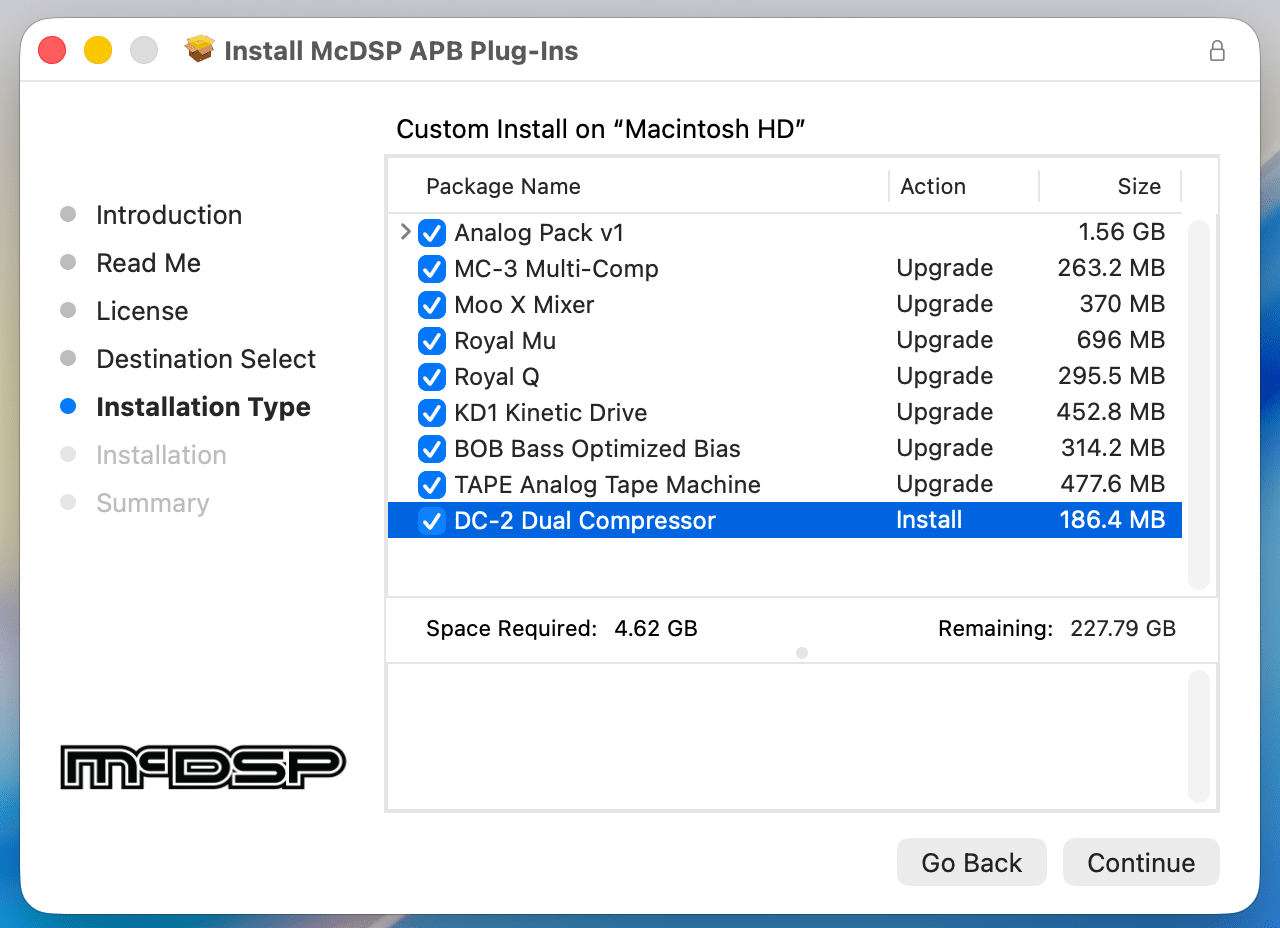
Download and unzip the APB Plug-in Installer, then double-click to run the package.
Plug-Ins
VERSION FILE
APB DEXT Plug-In Installer
1.9.20
Be sure to check the box for all APB Plug-ins. 
Step 3
Reboot your computer.
Step 4
After rebooting, navigate to your Applications folder, and delete the APB Status App and APB Updater App if present. 
Step 5
Download the APB Status App, and unzip the file in your Downloads folder. 
APB Status App
VERSION FILE
APB Status App v2
2.0.64
Step 6
From your Downloads folder, Copy and Paste (do not drag) the APB Status App into your Applications folder.
Step 7
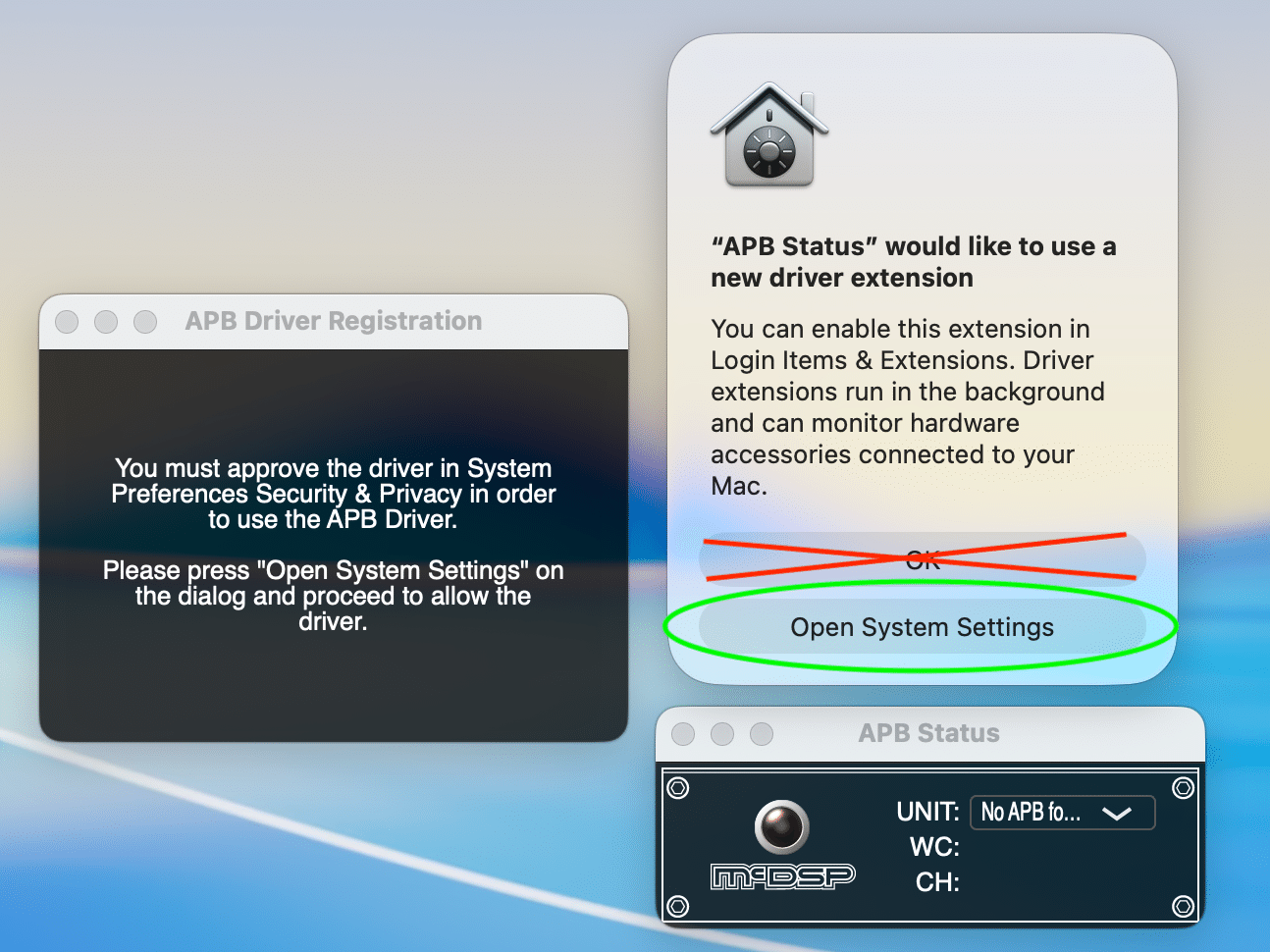
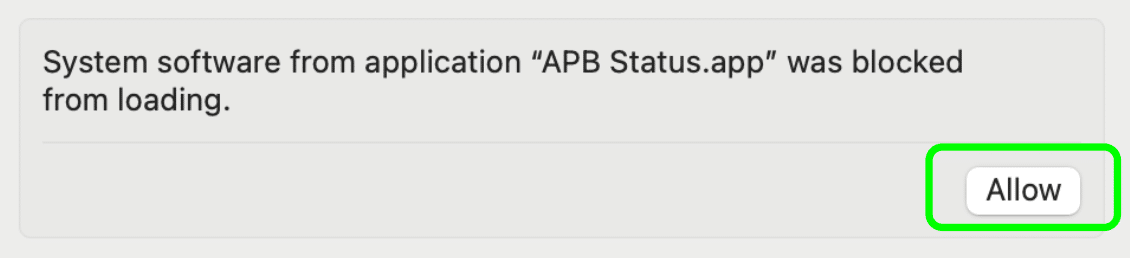
Double click the APB Status App to run it. You will see a pop-up dialog from APB Status. DO NOT CLICK OK. Instead, open system settings.
If you click OK, you will need to open Settings to "Allow" the driver. 
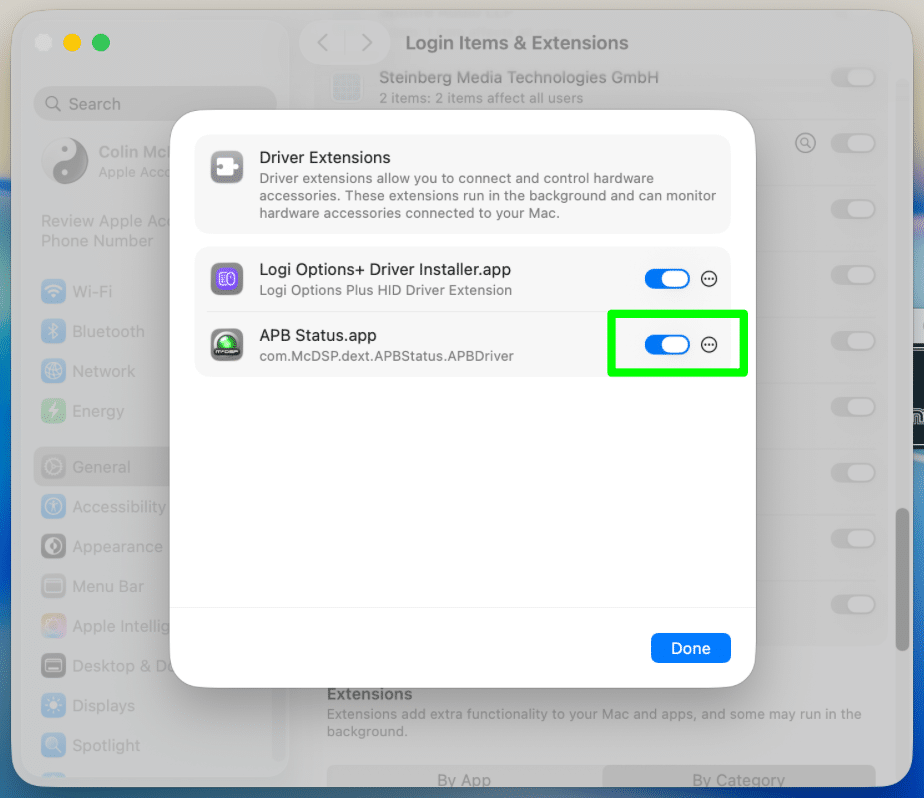
Go to Settings > General > Login items and Extensions (Tahoe and later), and scroll down to Driver extensions. Make sure APB Status.app is turned on.
On Sequoia, go to Settings > General > Extensions > Driver Extensions and click "Allow."
On Sonoma or an older OS, go to Settings > Privacy & Security > Extensions and click "Allow."
Step 8
Turn your APB on and wait for it to connect. The LED will glow green when connected. 
Step 9
Download and unzip the APB Updater App, and move it to your Applications folder. 
APB Updater App
VERSION FILE
APB Updater App v2
2.0.6
Step 10
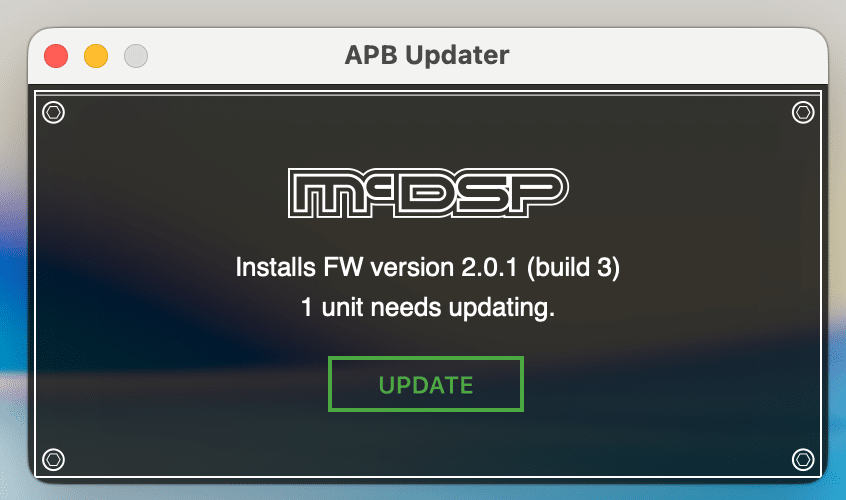
Close all applications except for Finder. Double click the APB Updater App to run it. If your APB requires an update, you will see a green "UPDATE" button.
Step 11
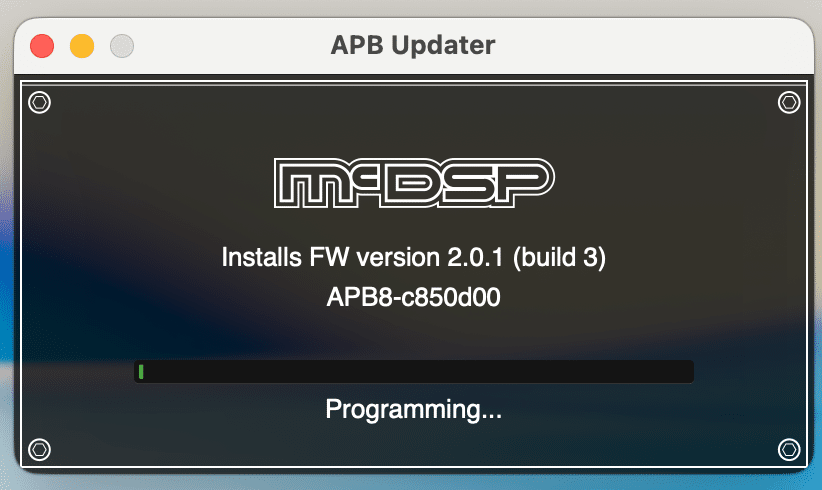
Click “UPDATE.” While the update is in progress, you will see a spinning green wheel, then a progress bar. Do not quit the APB Updater App or power off your unit.
Step 12
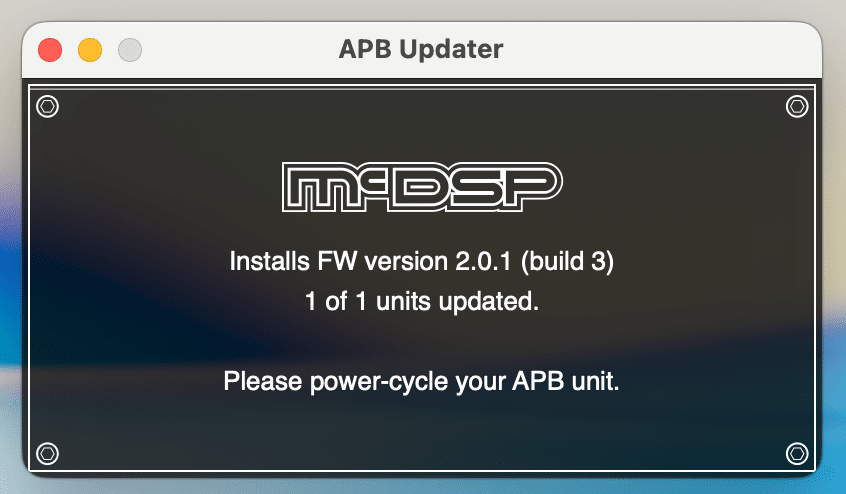
Once the loading bar completes, check that your APB LED is solid blue, not blinking. Your APB Updater App will display the following message:
Once this message is displayed and your APB LED is solid blue, turn off the APB. Count to 10, then turn the APB back on.
Step 13
Reboot your computer, and test out your new APB DEXT Plug-ins.
Thank you for updating to DEXT! This update is a vital step in ensuring your APB will continue to support future operating systems for years to come. If you have any questions about DEXT or the above installation instructions, please do not hesitate to contact support.
Please visit DEXT downloads page on a full sized computer browser to access installer downloads and written instructions.
play